
Connect Squirrly to AI Assistants
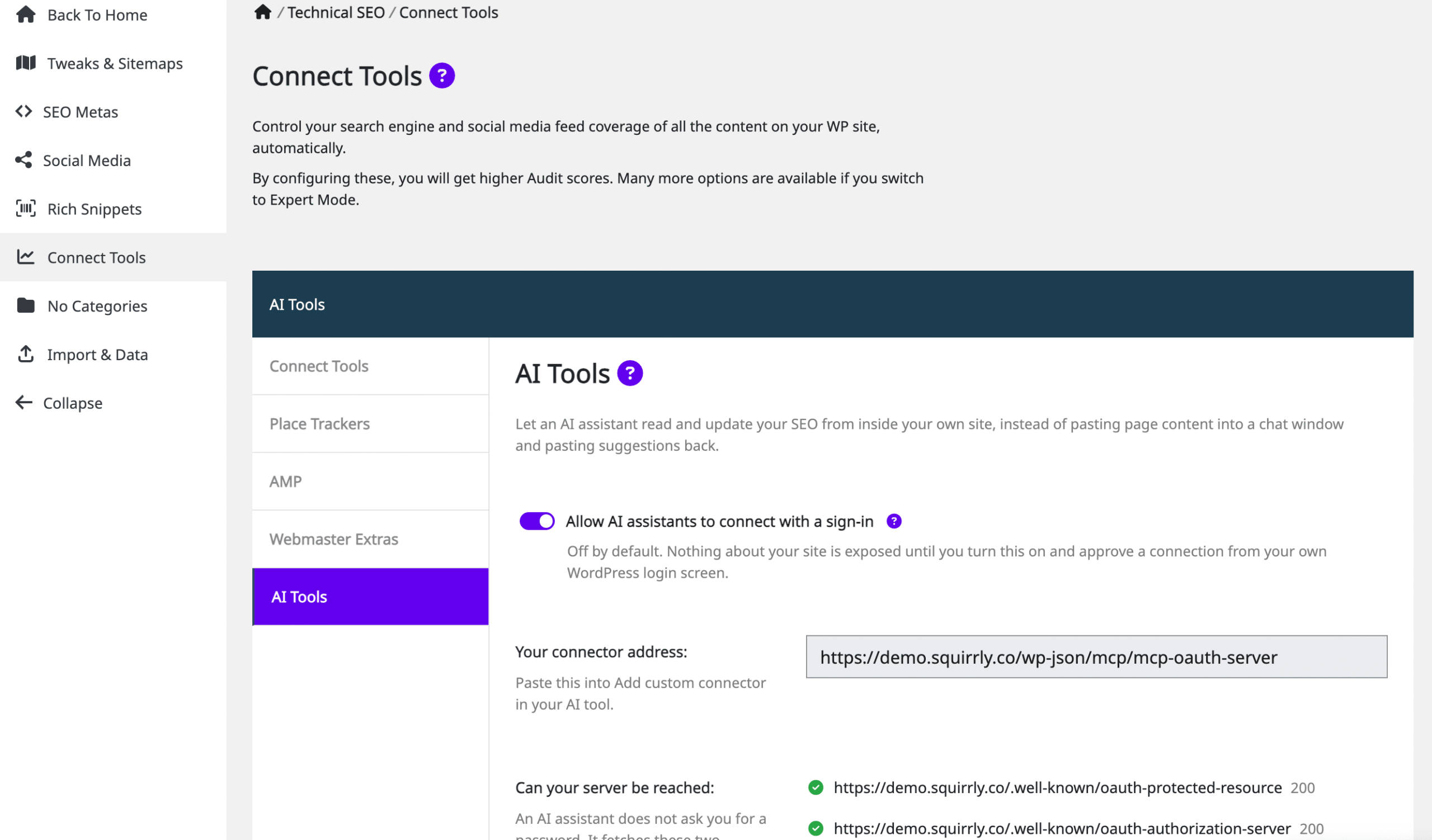
Let Claude or OpenAI Codex read and update your SEO directly from your site. One switch, one address, and Approval on your WordPress login screen. It takes about two minutes, and you never type a password into the assistant.
What’s new in this version
- Squirrly’s SEO tools are now visible to AI assistants. They were registered correctly but marked so MCP clients could not read them, so assistants found nothing. Fixed.
- You can add Squirrly directly to Claude or Codex with no separate MCP client on your computer and no Application Password to create by hand.
- Assistants can read your Automation patterns. Ask why a title looks wrong, and you get the rule behind it, not a guess.
Before you start
| HTTPS | No assistant will connect to a site whose address starts with http://. |
| WordPress 6.9+ | The Abilities API, which Squirrly registers its tools through, is part of WordPress from 6.9. |
| Squirrly SEO 14.2.5+ | The version that adds the sign-in step and the AI Tools screen. |
| MCP Adapter | Free plugin from the WordPress core AI team. Search for it in Plugins > Add New. It carries Squirrly’s tools to the assistant. |
| Pretty permalinks | Anything other than Plain, under Settings > Permalinks. |
Five steps
1. Turn on the sign-in step
In WordPress, go to Squirrly SEO > Technical SEO > Connect Tools > AI Tools, turn on Allow AI assistants to connect with a sign-in, and save.
Two things appear. Your connector address appears; copy it – you need it next. Two server checks also confirm your site is publishing the sign-in details. The switch only enables sign-in; no assistant has access until you approve one in step 4.
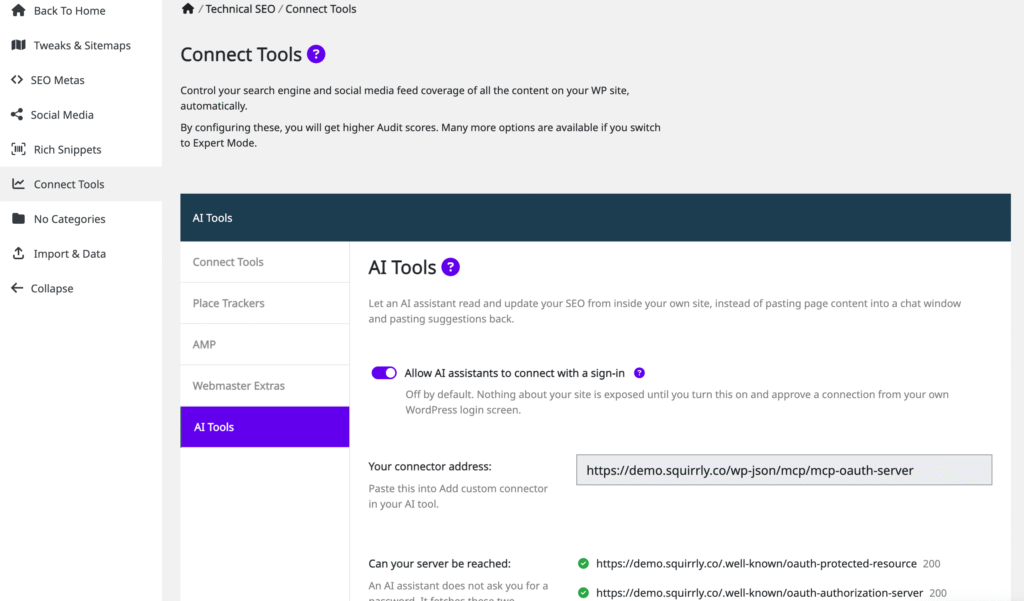
Both checks green mean your server is reachable. If either is red, the screen shows the configuration lines to change. Fix that before continuing and see Troubleshooting below.
2. Paste the address into your assistant
On claude.ai, open Customize > Connectors, then Add > Add custom connector. Name it so you recognise it and paste your connector address into Remote MCP server URL. It looks like https://yoursite.com/wp-json/mcp/mcp-oauth-server.
Click Continue. The assistant checks your site and fills in the rest automatically. You should see Authentication: Always required marked as Detected. Leave the settings as they are, then click Add.
Codex works the same way, with the same address.
3. Click Connect
The connector is now in your list but not connected. Clicking Connect sends you to your site to sign in.

Claude picks up your site’s icon so that you can tell several sites apart at a glance.
4. Approve it on your own site
Your site asks whether to allow the connection. This screen comes from your site, not the assistant. Check two things before approving:
- It shows a verified publisher, Claude for Claude, OpenAI for Codex. Your site checked the assistant’s published identity and confirmed it. If that green label is missing, stop and do not approve.
- It explains that it will create an Application Password for your user. That is how access is granted, and revoking it later cuts access off cleanly.

Click Allow and you return to the assistant connected.
5. Check what the assistant can do
The connector lists the tools it may use, split into read-only and write. You will see three general-purpose tools rather than a long list of named Squirrly ones, which is normal. The assistant accesses all of Squirrly’s abilities through these three and asks your permission the first time it uses each.

Read-only tools discover what is available. The write tool actually changes your SEO.
Try something simple: “What is the SEO title and meta description of my home page?” If the assistant answers with your actual title and description you are done.
Then try the question that shows what this connection is really for: “If that title looks wrong, which Automation pattern produced it?”
What the assistant can do once connected
The assistant can do exactly what the WordPress user who approved the connection can do, and no more. If an Editor approved it, the assistant can edit SEO across the site but cannot change site-wide settings. If a Contributor approved it, the assistant can read your Briefcase but cannot edit the SEO of articles that user doesn’t own. If you want an assistant that edits article SEO but must never change site-wide settings, create a separate Editor user and approve the connection while signed in as that user.
How to disconnect
Either end works, and either one is enough. In the assistant, open the connector and click Disconnect. In WordPress, go to Users > Profile, find the Application Password created for it, and revoke it. Turning the AI Tools switch off stops everything for every assistant at once.
Troubleshooting
“Authorization with the MCP server failed”
The assistant could not read the two sign-in documents from your site. Open the AI Tools screen and check Can your server be reached? It shows the status of each and what to change.
“Unknown OAuth client”
This assistant is not on your site’s allowlist. Claude and OpenAI Codex are allowed by default. You can add other clients with the sq_mcp_trusted_publishers filter.
A server check is red, status 403
Your web server refuses addresses that begin with a dot before WordPress sees them. On nginx this is a rule written like this:
location ~ /\. { deny all; }Add an exception above it so sign-in addresses are let through:
location ^~ /.well-known/ { try_files $uri $uri/ /index.php?$args;}A server check is red, status 404
Something answers /.well-known/ before WordPress does, usually a certificate rule written too broadly:
location ^~ /.well-known/ { root /var/www/letsencrypt; }Narrow it to the certificate path only, so every other address still reaches WordPress:
location ^~ /.well-known/acme-challenge/ { root /var/www/letsencrypt; }Also check that Settings > Permalinks is not set to Plain. Your host can make these changes if you do not manage the server yourself.
The screen says to install the MCP Adapter plugin.
Squirrly registers the SEO tools, and the MCP Adapter carries them. Install it from Plugins > Add New, and the message goes away.
It connects but finds no Squirrly tools.
Check that Squirrly SEO is 14.2.5 or newer. Earlier versions registered the tools in a way no MCP client could see that is the bug this version fixes.
I don’t use an AI assistant. Do I need to do anything?
No. The switch is off by default, and while it is off, nothing about your site changes.


0 Comments